Melery Matter over WiFi Light Wall Switch Smart Touch Sensor Remote Control Alexa Homekit SmartThings Google Home Assistant Siri
& Free Shipping
Free shipping on orders over $50!
- Satisfaction Guaranteed
- No Hassle Refunds
- Secure Payments
Description
- EU LVD Voltage: High voltage: Above 50Vac or 75Vdc
- Voltage: Other
- Model Number: HLS001-Matter
- Brand Name: Melery
- Origin: Mainland China
- Certification: CE,RoHS,FCC
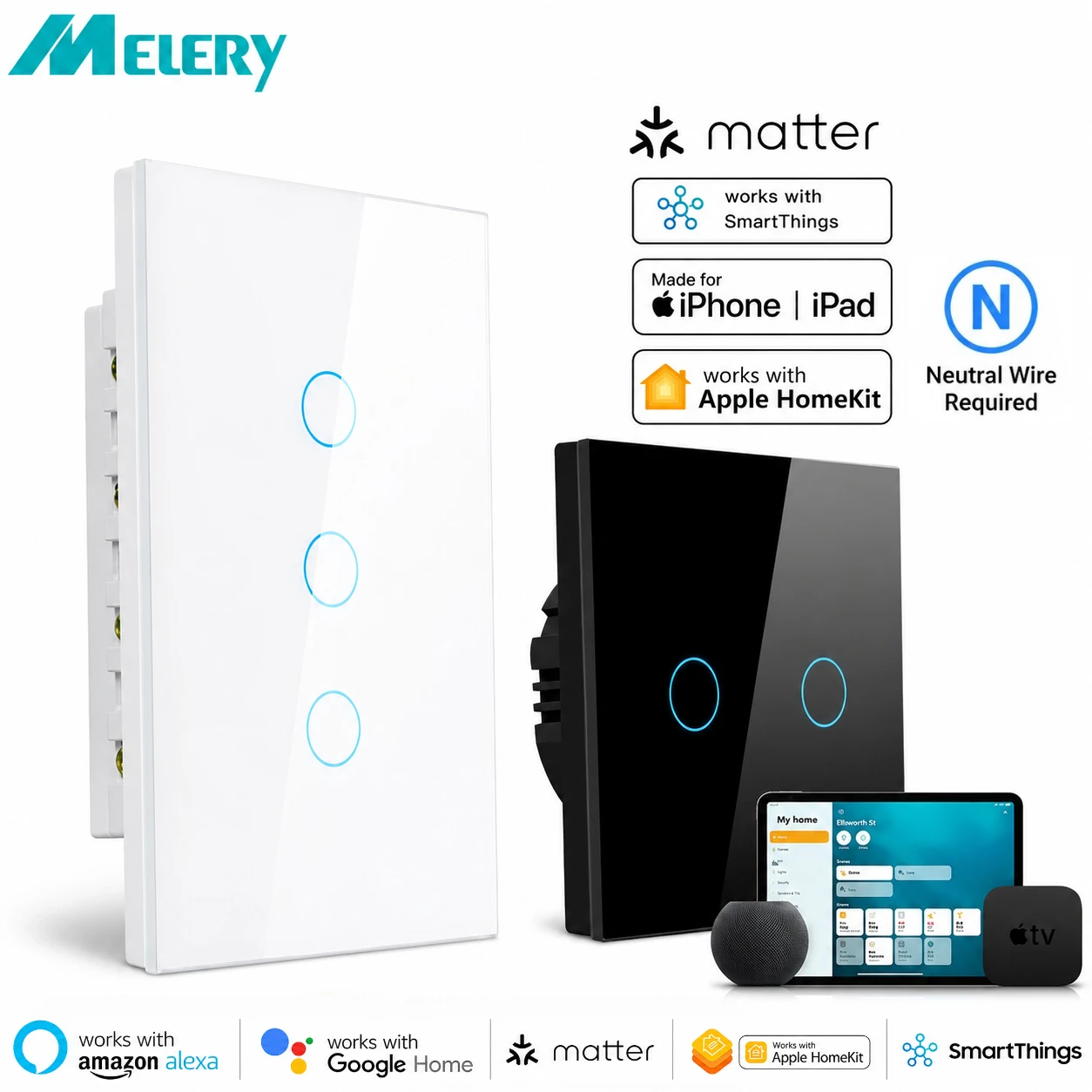
Apple Homekit Smart Light Switch – WiFi Touch Control Glass Panel, Works with Siri Alexa Google Home, Matter Protocol
HUB/GATEWAY REQUIRED | Neutral Wire Needed | 1/2/3 Gang Options | US/EU Standard Sizes
Why Choose Our Smart Light Switch?
-
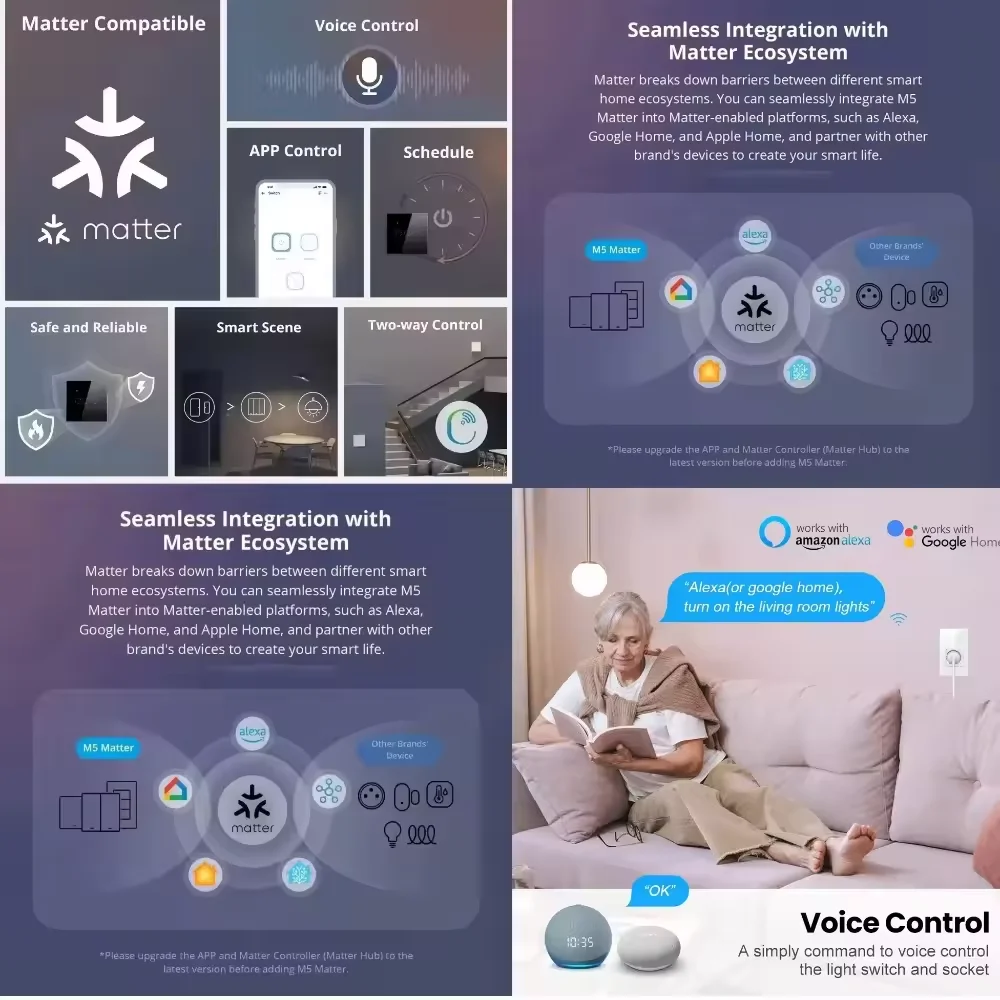
Matter Protocol Supported: Seamlessly connects to mainstream smart home platforms without downloading multiple brand apps. One-stop control via Apple Home, Alexa, Google Home, SmartThings, etc.
-
Multi-Platform Compatibility: Voice control with Siri, Alexa, Google Assistant; App control via uhome+, Apple Home, Google Home, SmartThings. Enjoy intelligent life anytime, anywhere.
-
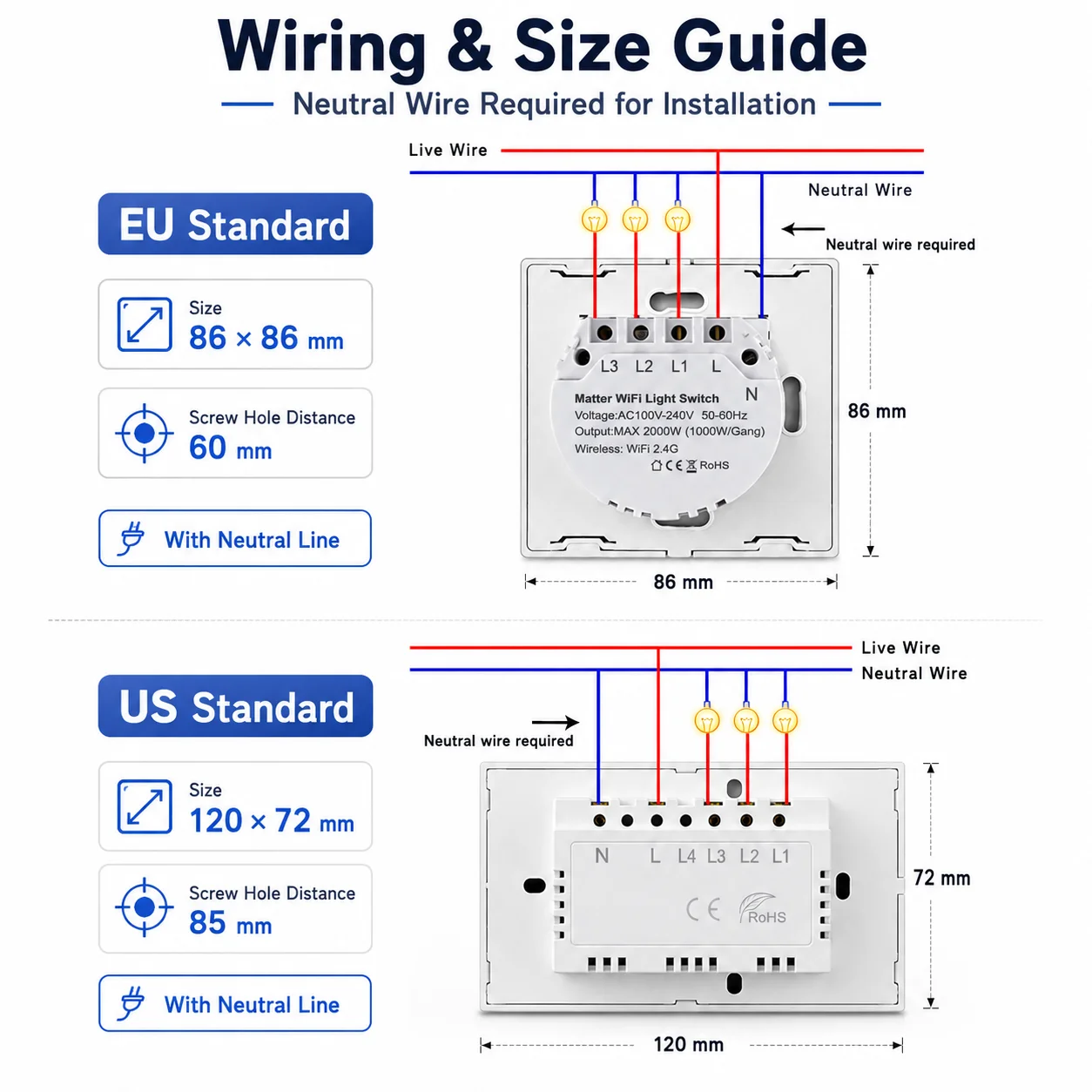
US & EU Standard Design: Tempered glass panel with minimalist luxury look, fits perfectly into your home decor. EU: 86*86mm; US: 120*72mm.
-
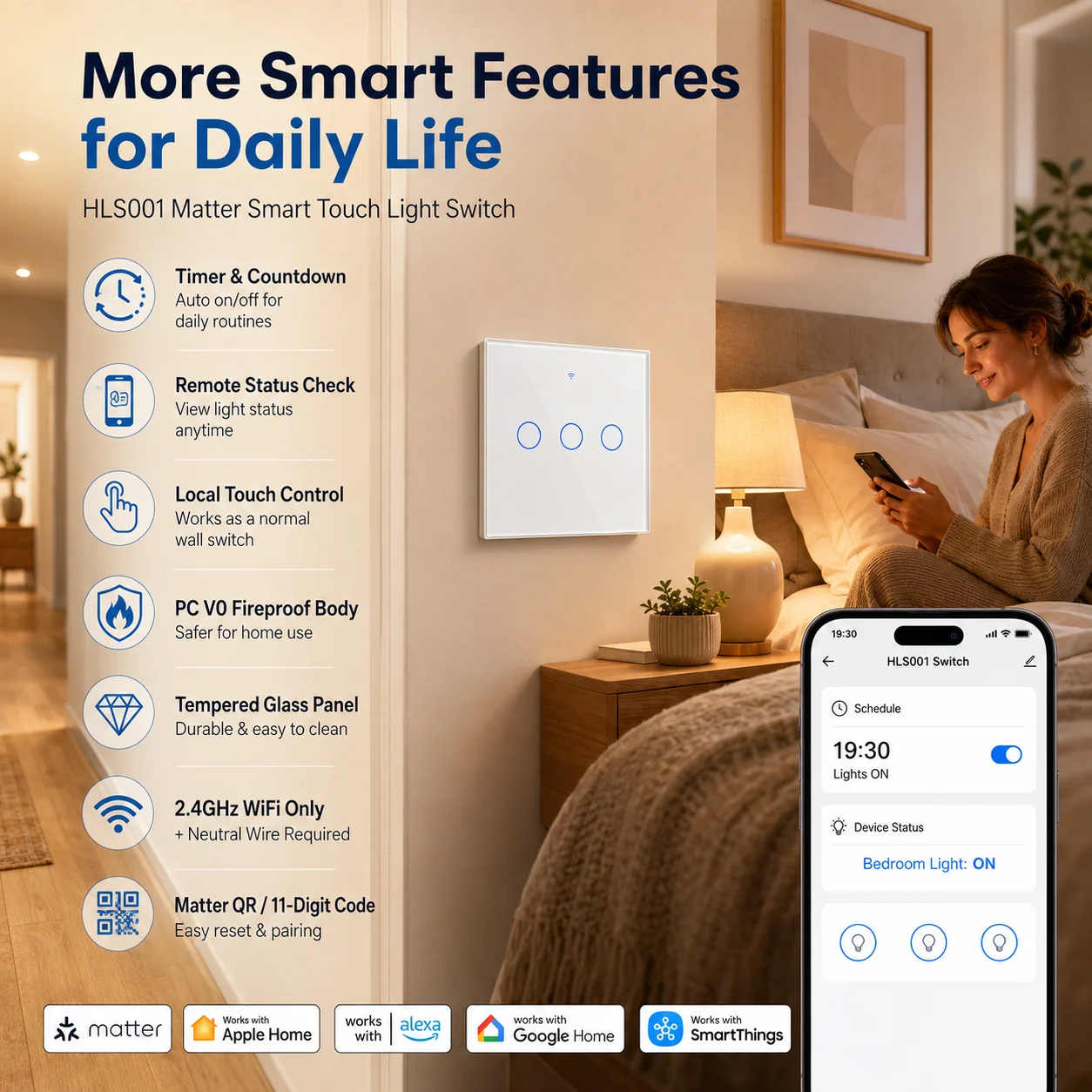
Safe & Durable: PC V0 fireproof material + tempered glass, overvoltage protection, low power consumption (<0.3W). Safe for long-term use.
Product Specification
|
Item
|
Details
|
|
Type
|
1/2/3 Gang Touch Wi-Fi Smart Switch
|
|
Dimension
|
EU Standard: 86*86mm; US Standard: 120*72mm
|
|
Supported APP
|
Apple Homekit, uhome+, Alexa, Google Home, SmartThings
|
|
Wi-Fi Standard
|
2.4GHz, IEEE 802.11 b/g/n (Not support 5GHz)
|
|
Material
|
PC V0 fireproof + Tempered Glass Panel
|
|
Rated Voltage
|
AC 100V-240V (Wide Voltage)
|
|
Load Power
|
3-300W/gang (Note: For LED/energy-saving bulbs, load ≤100W)
|
|
Supported System
|
iOS (Compatible with iPhone/iPad)
|
|
Wireless Power Consumption
|
<0.3W (Energy Saving)
|
|
Security Mechanism
|
WPA-PSK/WPA2-PSK (Secure Connection)
|
Important Notes
1. Neutral Wire Required: Please confirm your home wiring has a neutral wire before purchasing. Without it, the switch cannot work normally.
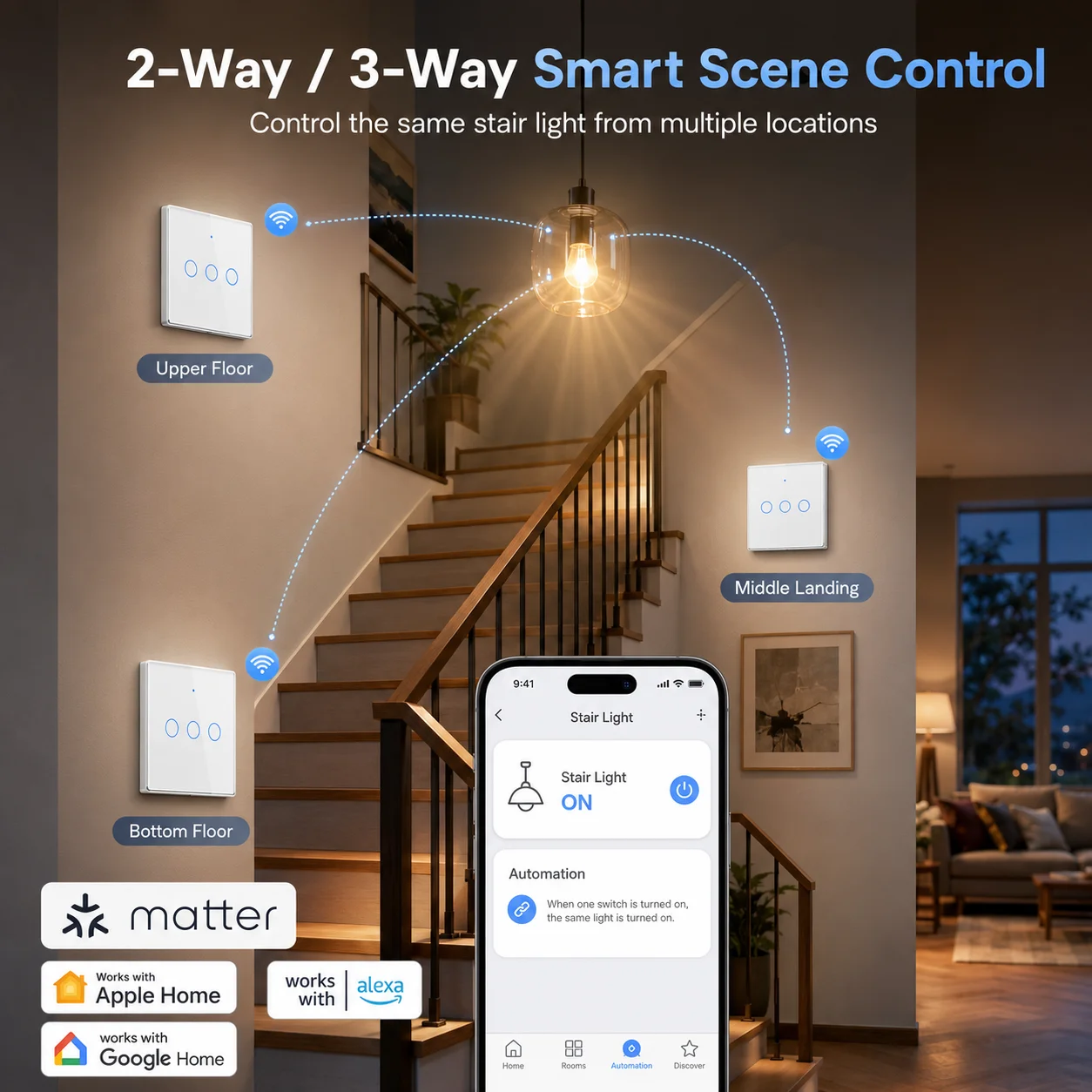
2. Group Control Notice: Apple Home and the smart app do not support group control settings, so the switch cannot realize multi-way control.
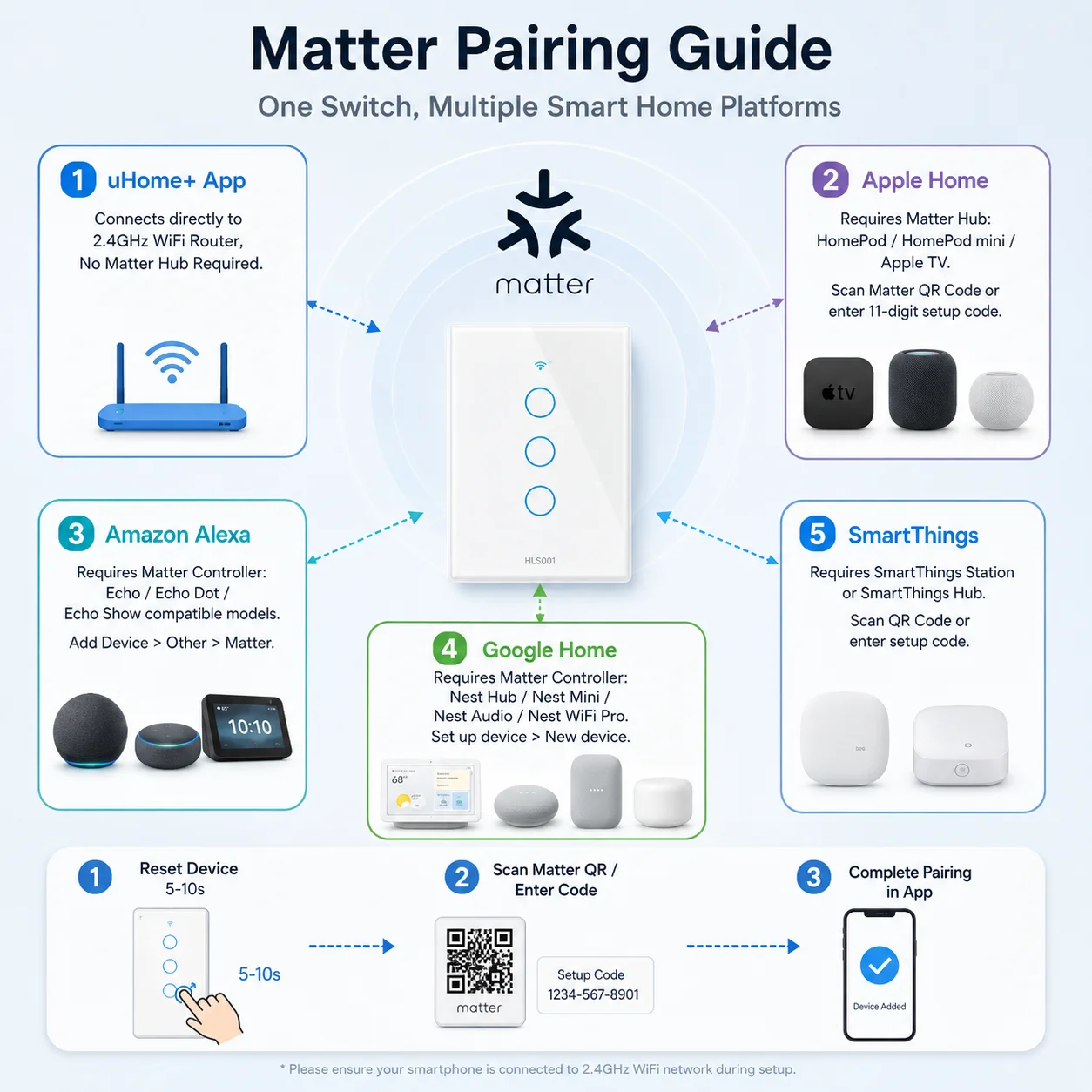
3. Matter Hub Needed: A compatible Matter control hub (e.g., Home Pod, Echo, Google Nest) is required for connection.
Intelligent Control Functions
1. Multi-Channel Control
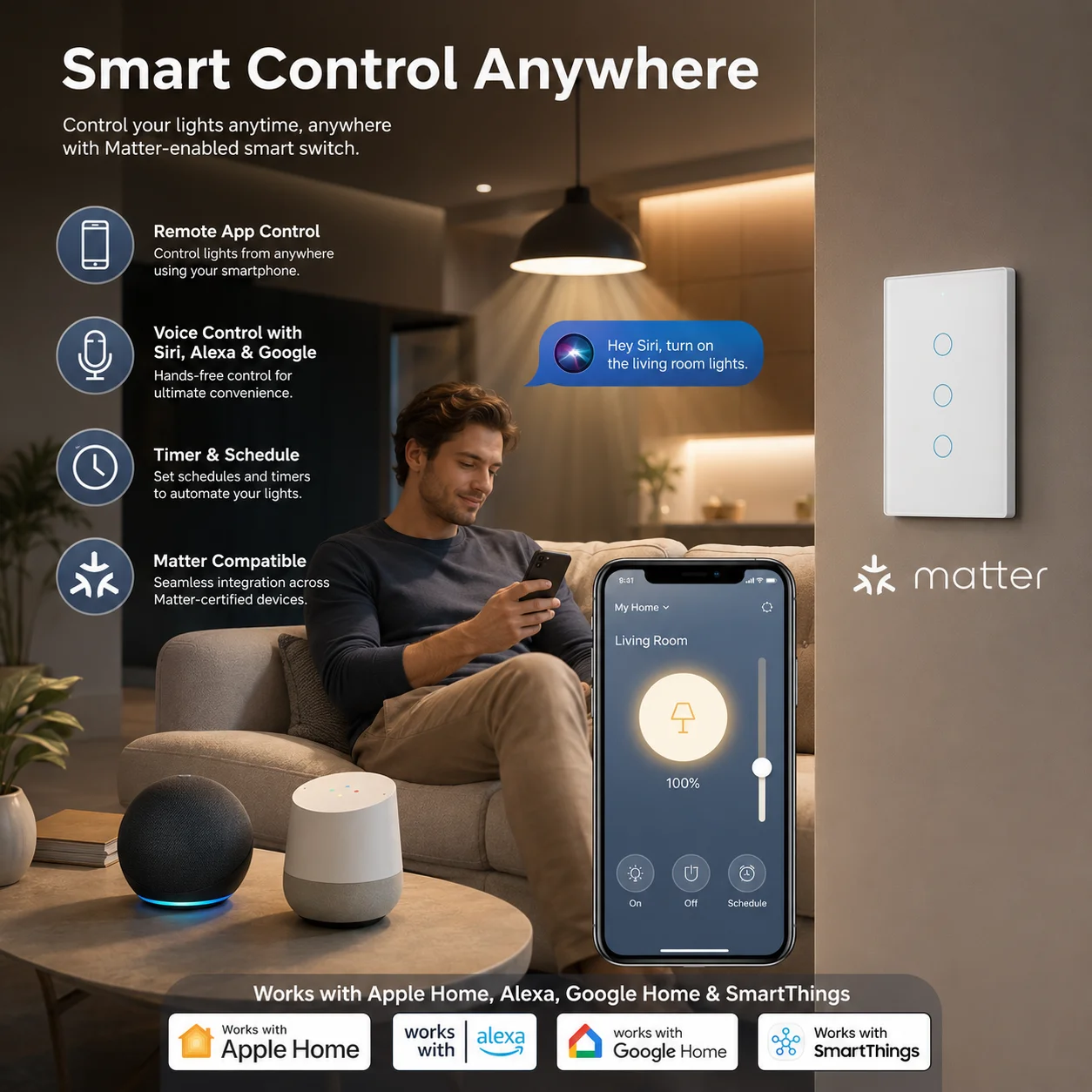
After successful network configuration, you can control the switch through multiple methods:
-
Voice Control: Directly issue commands like "Hey Siri, turn on the living room light" or "Alexa, dim the bedroom light".
-
App Remote Control: Control switch on/off, brightness adjustment, color adjustment (for compatible bulbs) via uhome+ or other supported apps, even when you’re not at home.
-
Touch Control: Big physical touch button for easy operation, suitable for all ages.
2. Timer Setting
Set a timer for the switch to automatically turn on/off. Perfect for daily scheduling—such as turning on the porch light before you get home, or turning off the bedroom light after you fall asleep, bringing a comfortable and intelligent lifestyle.
3. Easy Group Management (via Supported Apps)
Group multiple smart switches to control all lights in a room with one command. For example, create a "Good Night" scene to turn off all lights in the house with a single tap or voice command.
Easy Setup Guide
Designed for DIY installation, fits into standard wall boxes. Follow the steps below to connect the switch to your smart home system.
1. Network Configuration via uHome+ App
-
Download the uHome+ app from the App Store or Google Play.
-
Restore the device to factory settings to enter the network configuration state.
-
Open the uHome+ app, click the "+" sign in the upper right corner of the homepage.
-
On the network configuration interface, click the icon in the upper right corner, then scan the device’s QR code to add it. You can also enter the 11-digit pairing code manually.
2. Network Configuration via Apple Home App
Environment Check
-
iPhone/iPad system version ≥ iOS 16.2
-
A Matter control hub is required: Home Pod, Home Pod mini, or Apple TV
-
Connect to a 2.4G WiFi network (password cannot be blank; WiFi cannot be hidden)
Configuration Steps
-
Put the device into network configuration state (refer to Factory Reset section).
-
Open the Home app, click the "+" sign on the homepage, then select "Add or Scan Accessories".
-
Scan the device’s QR code or click "More Options" > "My Accessories" > "Enter Code" to input the pairing code.
-
Follow the on-screen prompts to complete the addition.
3. Network Configuration via Alexa App
Environment Check
-
Alexa App version ≥ 2.2.491118.0
-
Compatible Matter control hub (see below):
|
Device Type
|
Supported Versions/Models
|
|
Echo/Echo Dot
|
5th Gen: Echo Dot, Echo Dot (Gen 5 with Clock); 4th Gen: Echo, Echo Dot, Echo Dot (Gen 4 with Clock); 3rd Gen: Echo, Echo Dot, Echo Dot (Gen 3 with Clock)
|
|
Echo Show
|
3rd Gen: Echo Show 10, Echo Show 15; 2nd Gen: Echo Show 8, Echo Show 5; 1st Gen: Echo Show, Echo Show 8
|
Configuration Steps
-
Put the device into network configuration state.
-
Open the Alexa app, click the "+" sign on the homepage, select "Add Device" > "Other" > "Connect your Matter Device".
-
Choose to scan the QR code or enter the pairing code, then follow the prompts to complete the addition.
4. Network Configuration via Google Home App
Environment Check
-
Install the latest Google Home app.
-
Compatible Matter control hub: Google Nest Audio, Google Nest Hub, Google Nest Hub (2nd gen), Google Nest Hub Max, Google Nest Mini, Nest WiFi Pro
Configuration Steps
-
Open the Google Home app, click the "+" sign on the homepage.
-
Select "Set up device" > "New device", then follow the on-screen prompts to add the device.
-
After successful addition, set the device’s room location and modify the device name as needed.
5. Network Configuration via Samsung SmartThings
Environment Check
-
Samsung SmartThings App version ≥ 1.8.01.22
-
Compatible control center: SmartThings Station or SmartThings Hub
Configuration Steps
-
Put the device into network configuration mode.
-
Log in to the Samsung SmartThings app (ensure it’s bound to the control center).
-
Click the "+" sign in the upper right corner of the homepage, then select "Scan QR code" or "Enter setup code" to complete the addition.